
Overview
This article explains how to access and configure site customizations, site settings, and enhancements in XVWeb, including admin requirements, global and location-specific options, and best practices for managing layouts and image quality.
Before You Begin
- Changes at the site level affect all locations
- Some settings cannot be undone without Support
- We recommend IT and Clinical leadership review settings together
- If you are unsure, contact Planet DDS Support before changing defaults
Index
Accessing XVWeb Settings
- Admin privileges are required to access all XVWeb settings. Click your username, select "About and Help," and review "Account Permissions" for your current access level.
- Most settings are found under the "Settings" menu in the User Menu.
Site Info
- Displays statistics such as total current data storage, Site URL, Site Tenant ID, and options to download XVCapture certificates.
Search and Password Requirements
- Search queries can require first name, last name, or date of birth, in any combination.
- Password policies include requirements for numbers, symbols, case sensitivity, minimum length, and interval changes.
-
Note that the Password Reqs section is unused when XVWeb is integrated with an SSO environment.
- Interval Password changes can be set by checking the box and entering the number of days you would like users to have before their password expires and click save.
Site Settings
-
Format Settings: Name, date, time, and tooth format.
- Recommended to leave unchanged.
-
Zoom Increment: Sets granularity for zoom in/out buttons; applies globally
- Recommended to leave unchanged.
-
Always Show AI Results: Toggles automatic display of AI overlays if available.
- This setting does not display unless you have an AI-enabled location selected in XVWeb.
- This setting should be enabled unless your organization prefers otherwise.
- Always Show Enhanced Images: Toggles automatic display of image enhancements if available.
- Always Show Ghosted Images: Toggles automatic display of Ghosted Images if available.
- XVWeb Capture Display: Toggles XVWeb Capture UI when installed on a computer. Allows installation without showing UI, useful for IT deployment planning.
-
Zip Password for Exports: Requires password protection for exported image folders to support HIPAA compliance.
- Recommended to turn this on.
-
Mixed Modality Layouts: Collapses multiple series into one view for studies with different modalities; requires compatible layout. Learn more here: Site Setting - Mixed Modality – Apteryx
- Recommended to leave off unless specifically needed.
-
Patient ID Search Options: Automatically wildcard prefix/suffix of patient ID, set ID-only query, and toggle masking of patient IDs. Applies globally.
- Recommended to leave off.
-
Duplicate Patient Warning: Option to enable warnings when there are multiple patients in XVWeb with the same patient ID. Warning notification can be clicked to prompt patient merge workflow.
- Recommended to give users Edit permissions if toggling this on. Otherwise this setting is just a signal that users cannot fix without someone else that has Edit permissions to fix.
- Footer Text: Typically left unchanged.
- Query Filter Defaults: Sets default search filters for the patient search page.
Reminder that you can always click the + button on the left of the query filters to manually add them for one-off searches.
Location Settings
- Settings can be toggled on, off, or set to inherit from site settings.
- Always Show Enhanced Images: Toggle to control if you want image enhancements to automatically apply or not. This is best used as a reactionary tool to enable as-needed with the help of PlanetDDS teams.
- Legacy Capture Interop Visibility: Toggles visibility of buttons to launch XVCapture/XrayVision DCV from XVWeb. Allows control of which locations can use XVWeb Capture vs XVCapture workflows.
- XVWeb Capture Display: Toggles visibility of XVWeb Capture UI within XVWeb, even if installed.
Confused about the difference between XVCapture, XVWeb, and XVWeb Capture? Refer to this article: Differences between XVCapture, XVWeb, and XVWeb Capture – Apteryx -
Enhancement Mode: Controls the behavior of the Always Show Enhanced Images Site or Location when toggled on.
Refer to this article for full details: Image Quality Upgrades – Apteryx- Dynamic applies a generic enhancement that should work for improving most images.
- Favorite applies the location's set favorite enhancement, if applicable, to the viewed image.
- Auto will apply the best-fit enhancement for the given image. This is based on hardware manufacturer/model and modality restrictions set on the enhancements compared with the image itself.
Audit Logs
- Audit logs are saved individual text files for each unique action, and they are all listed under this section. While they can be accessed here, we suggest submitting a Support ticket with details of what you'd like to audit so our team can help with the request.
For Denticon users, there are some audits within Denticon that may also assist you.
Implant Libraries
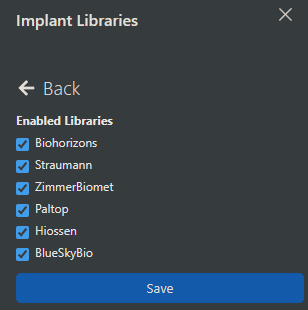
- Recommended to keep all implant libraries enabled for XV Web 3D.
If you are unhappy with the current selection of Implant Libraries, please Submit a Product Suggestion using Help>Submit a Product Suggestion from Denticon. For non-Denticon customers, submit a Support ticket for assistance submitting your request.
Customizations
As an Admin of XVWeb, these are additional global customizations you need to be aware of in XVWeb. These customizations are global and can impact the quality of your data, integrations, and workflows are dependent upon ensuring these items are managed. It is recommended that IT lead management of these items with Clinical leadership deciding on which layouts and enhancements to standardize and approve.
Location Management
- For Denticon customers, there is some automatic logic applying that can be reviewed here that makes most of Location Management and Capture Station assignment tools hands-off for you: XVWeb Automatic Capture Station Assignment – Planet DDS
-
For all non-Denticon customers, locations must be manually created to use location-specific settings, analytics, and AI. See these articles for more details:
Enhancements
- XVWeb enhancements are a tool used to provide togglable, real-time improvements to the quality of your images.
- While enhancements are primarily meant to be reactive, there are a handful of instances with Converted Images or Carestream IO images where we may have a proactive enhancement we create and apply for you.
- It is highly recommended to keep enhancements to a minimum, and to use them with the assistance of our Support team until you understand how they work and how to minimize disruption when using.
- Filters can be customized by manufacturer, model, modality, and device serial number.
- Improvements have been made to how Enhancements can be used, and the summary of those changes can be found here: Image Quality Upgrades – Apteryx
Layouts
- Admin privileges required to edit or create layouts.
- Layouts define image capture order and tile associations. Tiles can have tooth associations, specific images (office logo), modality, and capture order assigned to them.
- Standardizing layouts is recommended to avoid confusion and maintain consistency across locations.
-
Refer to these articles for more details:
Customization Best Practices
- Only assign Admin privileges to user accounts that will only be used by one person.
- Keep users with Admin privileges in XVWeb to a minimum.
- Minimize the number of filters and layouts to streamline user experience and support clinical standardization.
- Use site-level settings for global consistency; location-level settings for specific needs.
Article Version 1.0 2026.4.20